Shared profile
The Shared profile lets you publish a seafarer's profile as a public, time‑limited web link that you can send to a ship manager or ship‑owner. The recipient does not need an account — the link itself is the only access. Before sharing, you decide exactly which blocks of information are visible and which files can be downloaded, so sensitive data is never exposed by accident.
You open the sharing settings from the seafarer profile toolbar — the publication action (see item 5 on the Seafarer profile page).
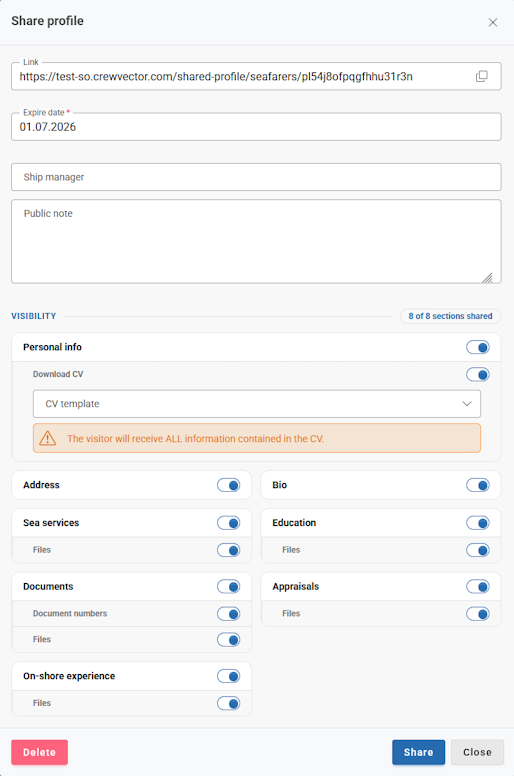
- Link — the public address of the shared profile. Use the copy button on the right to copy it and send it to the recipient.
- Expire date — the date the link stops working. After this date the recipient sees an "unavailable" page instead of the profile (see Link expiry below).
- Ship manager — optionally attach the manager/company the profile is shared with (for your own reference).
- Public note — a free‑text note from the crewing agency that is shown to the recipient on the public page (for example, current availability or preferred contract length).
- Visibility — the set of switches that control what the recipient can see and download (described below).
- Sections shared counter — shows how many of the 8 main sections are currently switched on (for example, 5 of 8 sections shared).
- Share — saves the settings and (re)activates the link. Your visibility choices are stored with the link, so re‑opening this dialog later shows the same settings.
- Close — closes the dialog without sharing.
- Delete link — stops sharing completely. The link immediately becomes invalid.
The link is the only thing protecting the data — anyone who has it can open the profile until the link expires or is deleted. Share it only with the intended recipient, and use the Expire date and Delete link options to limit access.
Visibility settings
Each block has an on/off switch. When a block is off, it is completely hidden on the public page and, where files are involved, those files cannot be downloaded — even through a direct link.
A new link starts with all information blocks switched on and CV download switched off.
The 8 main sections counted by the sections shared indicator are: Personal info, Address, Bio, Sea services, Documents, Education, On‑shore experience, Appraisals.
Personal info
Controls the seafarer's identity.
- On — the recipient sees the seafarer's full name and photo.
- Off — the name is replaced with an anonymous identifier (for example, Seafarer #136766) and the following are hidden: photo, date of birth and age, place of birth, and the Address block. Sex and Nationality remain visible.
Turning Personal info off also automatically switches off and locks CV download and all file downloads in every section (you cannot share files or a CV from an anonymised profile). The Address and document‑number switches are locked off as well.
Allow CV download
Adds a Download CV button to the public page that generates the seafarer's CV from a chosen template.
- Available only when Personal info is on.
- When switched on, choose a CV template from the drop‑down (these are the seafarer‑profile templates, the same ones used for export).
- A warning is shown because the generated CV is a complete document:
The visitor will receive ALL information contained in the CV, regardless of the section switches below.
In other words, the section switches control the on‑screen profile, but a downloadable CV always contains the full template output. Leave CV download off if you want the recipient to see only the blocks you selected.
Address
Shows the Country, City and Airport. Hidden when this switch is off, or whenever Personal info is off.
Bio
Shows the biometrics card (height, weight, sizes, eyes/hair, and similar physical details).
Sea services
Shows the seafarer's sea‑service records (vessel, IMO, vessel type, flag, rank, sign‑on/sign‑off, length of service).
- Attached files — sub‑switch. When on, the recipient can open and download the files attached to each sea‑service record. When off, the files button is hidden and the files cannot be downloaded.
Documents
Shows the seafarer's documents and certificates (name, grade, issue place, issue/expiry dates).
- Document numbers — sub‑switch. When off, the document Number column is hidden. (Also hidden when Personal info is off.)
- Attached files — sub‑switch. Controls downloading of files attached to documents, the same way as for Sea services.
Education
Shows the seafarer's education records (institution, qualification, dates).
- Attached files — sub‑switch. Controls downloading of attached education files.
On‑shore experience
Shows shore‑based work records (position, place, dates, leave reason).
- Attached files — sub‑switch. Controls downloading of attached files.
Appraisals
Shows appraisal records (type, evaluation, dates, vessel, rank, reason).
- Attached files — sub‑switch. Controls downloading of attached files.
The Languages block is always shown on the public profile and has no switch.
How the switches interact
| If you switch off… | The recipient loses access to… |
|---|---|
| Personal info | Name (replaced by Seafarer #ID), photo, date of birth/age, place of birth, Address block, CV download, and all file downloads. Sex and Nationality stay visible. |
| A section (e.g. Documents) | That whole block, including its sub‑items and files. |
| A section's Attached files | Only the file downloads for that section; the records themselves stay visible. |
| Document numbers | The Number column in Documents only. |
| Allow CV download | The Download CV button only. |
A sub‑switch (Attached files, Document numbers) is automatically locked off while its parent section — or Personal info — is off.
What the recipient sees
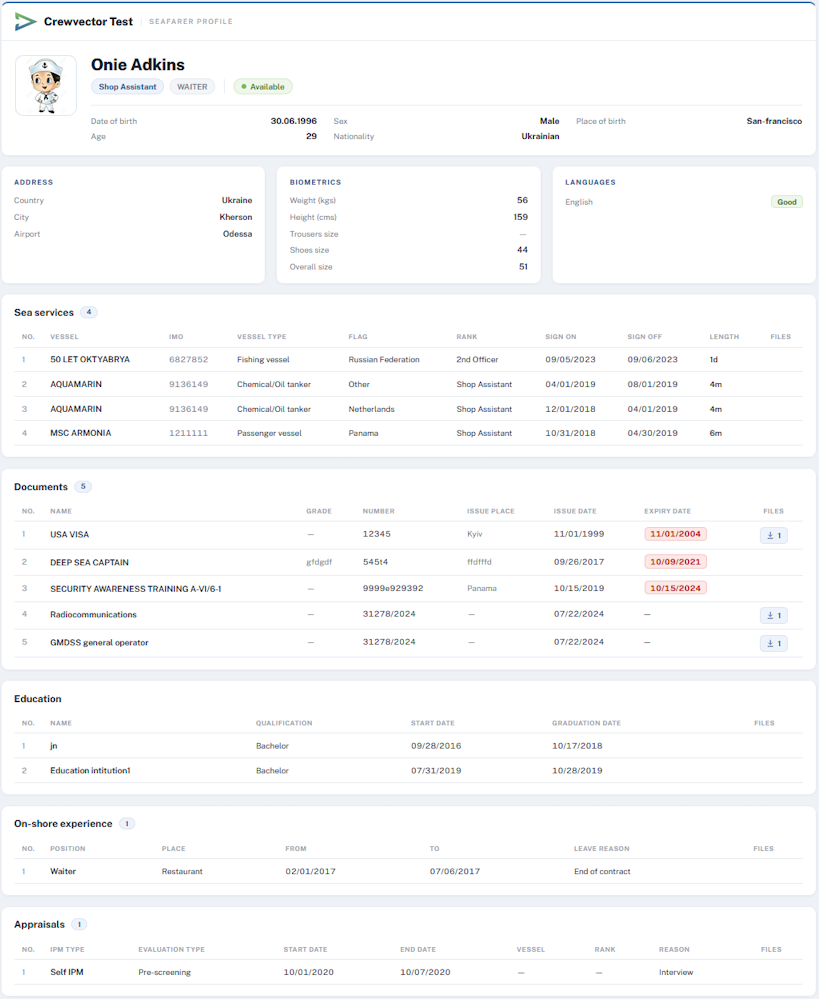
The recipient opens the link in any browser and sees a clean, read‑only profile page containing only the blocks you enabled:
- A header with the agency logo, the seafarer's name (or Seafarer #ID if Personal info is off), rank and availability.
- Your Public note, if you added one.
- The information blocks you switched on (Address, Bio, Sea services, Documents, Education, On‑shore experience, Appraisals, Languages).
- A files button on records that have downloadable attachments — opening it lists the files and lets the recipient download them individually or all at once as a ZIP. This button appears only for sections where Attached files is on.
- A Download CV button (top of the page) — shown only when CV download is enabled.
Files for any switched‑off section cannot be downloaded, even if the recipient guesses a direct link — the server returns "not found".
Link expiry
A shared link works until its Expire date. After that date — or after you press Delete link — anyone who opens the link sees an unavailable page (with your company name and website) instead of the profile.
To stop sharing immediately at any time, open the dialog and press Delete link.
Updating a shared profile
A seafarer can have one active shared link at a time. To change what is shared:
- Open the seafarer profile and start the publication/share action again.
- The dialog opens with the current settings.
- Adjust the switches, expire date, ship manager or note.
- Press Share to save. The link address stays the same; the recipient immediately sees the updated visibility the next time they open it.