Templates
Choosing an export template
Click Export on the relevant profile, document, or report. For supported exports, the Templates dialog includes Default built-in template alongside your company's uploaded templates.
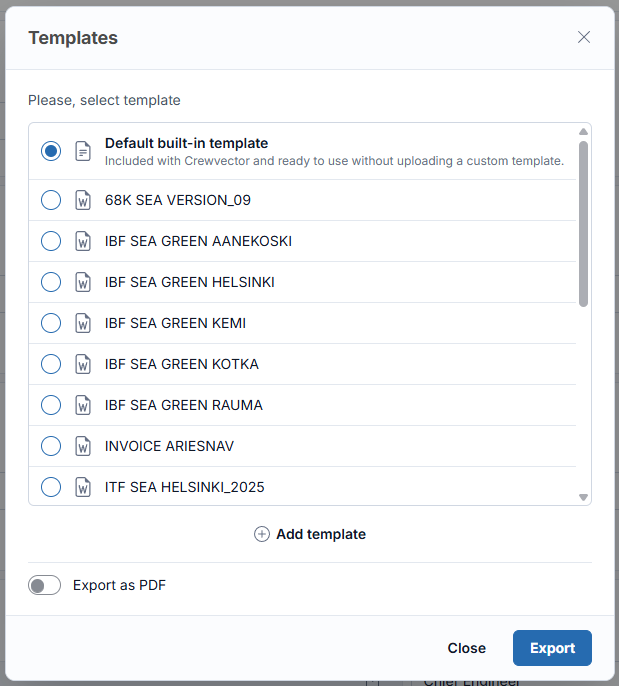
- Choose Default built-in template to use the included Crewvector template, or select an uploaded template.
- Enable Export as PDF if you need a PDF. Leave it off to download the document in its original format.
- Click Export.
Built-in templates are available for seafarer profiles, contracts, invoices, payslips, crew change, crew list, crew and standby crew reports, letters of guarantee, medical referrals, expired-document and crew document readiness reports, and vessel payroll. Seafarer list and supported statistics exports also have built-in spreadsheets.
A company template marked Default is preselected when the dialog opens. Selecting Default built-in template always uses the included template, even when your company has its own default. Add template opens template management if your account has the required permission.
If PDF conversion is temporarily unavailable, try again with Export as PDF turned off. If no built-in template is available for the document, choose an uploaded template or contact support.
Company logo
Upload your logo under Settings → Company. In custom templates that support a company logo, insert [[CompanyLogo]] where the image should appear. For example, [[CompanyLogo]:size(150,150)] sets its size in the document.
The logo appears only where the template includes the corresponding image field. Uploading a logo does not add an image placeholder to existing custom files. Use the supported-field list for the template's category to check availability.
How it works
Crewvector CRM uses a special templating engine for generating documents. The Templater engine allows you to create templates in Word, Excel and PowerPoint. This will allow you to focus on creating beautiful and insightful reports by leveraging advanced Office features (tables, charts, pivots…).
Example of a seafarer application form template:
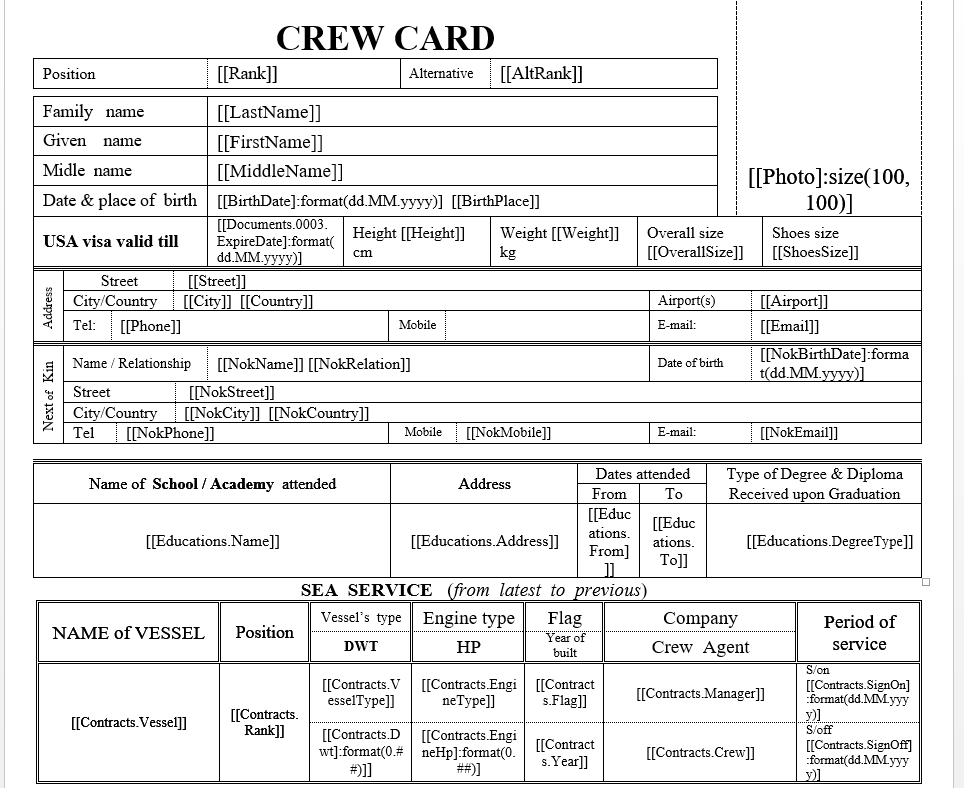
Attributes
The template is created by indicating special attributes in the document in double square brackets.
Example:
[[Rank]]
or
[[Seafarer.FirstName]]
where:
$\qquad$Rank is the name of the attribute, in place of which the seafarer's rank will be inserted.
$\qquad$Seafarer.FirstName is the name of the attribute, in place of which the seafarer's first name will be inserted.
Add. attribute parameters
Some attributes may have additional parameters that can determine photo size, date or number format. For instance:
[[Photo]:size(100,100)]
[[NokBirthDate]:format(dd.MM.yyyy)]
Additional parameters are specified after the first closing parenthesis, before the last, and begin with ":" (colon).
format - Parameter that determines the format of the date or number.
Date formatting
format(dd.MM.yyyy)

dd.MM.yyyy - 29.05.2015
MM/dd/yyyy - 05/29/2015
dddd, dd MMMM yyyy - Friday, 29 May 2015
yyyy MMMM - 2015 May
HH:mm - 05:50
hh:mm tt - 05:50 AM
d -> Represents the day of the month as a number from 1 through 31.
dd -> Represents the day of the month as a number from 01 through 31.
ddd- > Represents the abbreviated name of the day (Mon, Tues, Wed, etc).
dddd -> Represents the full name of the day (Monday, Tuesday, etc).
h -> 12-hour clock hour (e.g. 4).
hh -> 12-hour clock, with a leading 0 (e.g. 06)
H -> 24-hour clock hour (e.g. 15)
HH -> 24-hour clock hour, with a leading 0 (e.g. 22)
m -> Minutes
mm -> Minutes with a leading zero
M -> Month number(eg.3)
MM -> Month number with leading zero(eg.04)
MMM -> Abbreviated Month Name (e.g. Dec)
MMMM -> Full month name (e.g. December)
s -> Seconds
ss -> Seconds with leading zero
t -> Abbreviated AM / PM (e.g. A or P)
tt -> AM / PM (e.g. AM or PM)
y -> Year, no leading zero (e.g. 2015 would be 15)
yy -> Year, leading zero (e.g. 2015 would be 015)
yyy -> Year, (e.g. 2015)
yyyy -> Year, (e.g. 2015)
K -> Represents the time zone information of a date and time value (e.g. +05:00)
z -> With DateTime values represents the signed offset of the local operating system's time zone from Coordinated Universal Time (UTC), measured in hours. (e.g. +6)
zz -> As z, but with leading zero (e.g. +06)
zzz -> With DateTime values represents the signed offset of the local operating system's time zone from UTC, measured in hours and minutes. (e.g. +06:00)
Number format
format(0.#)

1234.5678 ("00000") -> 01235
0.45678 ("0.00", en-US) -> 0.46
0.45678 ("0.00", fr-FR) -> 0,46
1234.5678 ("#####") -> 1235
0.45678 ("#.##", en-US) -> .46
0.45678 ("#.##", fr-FR) -> ,46
0 - Replaces the zero with the corresponding digit if one is present; otherwise, zero appears in the result string.
# - Replaces the "#" symbol with the corresponding digit if one is present; otherwise, no digit appears in the result string. Note that no digit appears in the result string if the corresponding digit in the input string is a non-significant 0. For example, 0003 ("####") -> 3.
. - Determines the location of the decimal separator in the result string.
, - Serves as both a group separator and a number scaling specifier. As a group separator, it inserts a localized group separator character between each group. As a number scaling specifier, it divides a number by 1000 for each comma specified.
Image formatting
**size** - The parameter that sets the picture size.
Example:
[[Photo]:size(100,100)] - Set the image size not exceeding 100 pixels vertically and horizontally.
The index of any list starts from 0. For example:[[Educations.0.Name]] - returns the name of the first educational institution.
All tags are set by the user in the particular catalog. The tag name should be as short as possible and without spaces.