Importing a Seafarer's Profile
The seafarer profile import feature allows you to automatically extract and parse information from existing CVs and resumes using an AI-powered service. This functionality streamlines the process of creating new seafarer profiles by automatically recognizing and extracting relevant data from uploaded documents.
You can use an import in two ways: to create a new seafarer profile, or to update a profile that already exists in your database — for example, when a seafarer sends you a refreshed CV after a new contract. See Updating an Existing Profile.
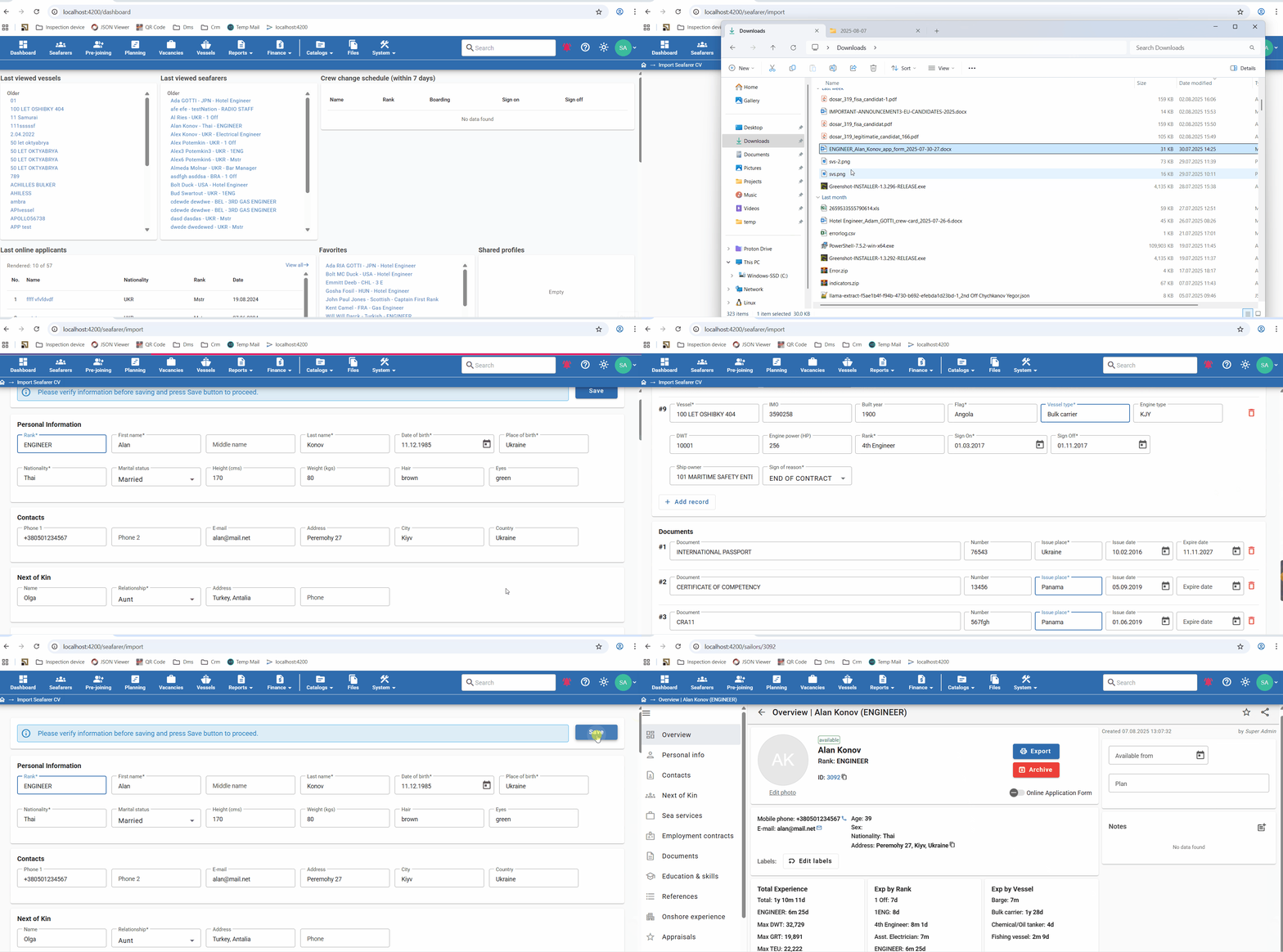
Supported File Types
The import feature supports the following file formats:
- PDF documents (.pdf)
- Word documents (.docx)
- HTML files (.html)
Important Limitations
File Size Limit
The maximum file size for upload is 5 MB. Please ensure your documents are within this limit before attempting to upload.
Processing Time
The import process is resource-intensive and typically takes approximately 2 minutes to complete. Please be patient during the parsing process and avoid refreshing the page or navigating away.
Monthly Quota
Currently, there is a limit of 50 profile imports per month. This limitation helps us manage system resources and ensure optimal performance for all users.
What Information is Recognized
Currently, the AI service can recognize and extract the following types of information:
- Personal Information: Name, contact details, nationality, date of birth, etc.
- Certificates: Professional certifications, licenses, and training records
- Sea Services: Maritime work experience, vessel details, positions held
- Education: Educational institutions, specialities, and study periods
Seafarer photographs are not processed or extracted during the import process and will need to be added manually to the profile.
How It Works
The import process follows these steps:
- File Upload: Upload your seafarer's CV or resume in one of the supported formats
- AI Processing: The system begins parsing the document using our AI-powered service
- Data Review: Once processing is complete, the system displays all recognized data for your review and verification. The data is grouped into sections: Personal Information, Contacts, Next of Kin, Sea Service, Documents, and Education
- Saving: After reviewing and making any necessary corrections or additions, save the import. By default a new seafarer profile is created. If the seafarer is already in your database, you can apply the import to their existing profile instead — see Updating an Existing Profile
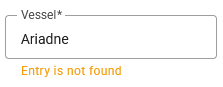
The “Entry not found” alert means that an entry with this name was not found and will be added during the saving operation. To avoid creating duplicates, please ensure all names are specified correctly before finalizing the save.
Whether a user is allowed to add these new catalog entries during import is controlled by the Add new catalog records during CV import permission. If a user's role does not have it, the import uses only values that already exist in the catalogs. See User Permissions.
In the Education section, an entry without an educational institution cannot be saved. Such a row is marked with “Without an organization this record will not be saved.” — fill in the institution, or remove the row.
Reviewing ranks and vessels
Rank matching recognises common maritime abbreviations and ordinal forms, such as variations of officer and engineer ranks. Review the matched rank before saving, especially if your catalog contains similar names.
In Sea Service, use the vessel dropdown to choose the intended vessel and check its IMO number and engine model against the CV. Matching and vessel-detail handling have been improved, but you should still correct unmatched or inaccurate values before saving.
Updating an Existing Profile
When a seafarer is already in your database and sends you an updated CV, you do not have to create a second profile. You can apply the import to the profile you already have, so the new sea services and certificates are added to the seafarer's existing history.
Choosing the profile
On the data review screen, click Update existing seafarer in the toolbar at the top. The Select the seafarer to update window opens:
- The search box is pre-filled with the surname recognised from the CV, so likely matches are shown straight away. You can search by any other name.
- Each row shows the seafarer's photo, full name, rank, date of birth, and age — enough to tell apart people with similar names.
- Select the seafarer and confirm. The toolbar then shows The import will be applied to: <name>, and the button changes to Change seafarer so you can pick a different one.
To go back to creating a new profile, click the ✕ next to the seafarer's name (Create a new seafarer instead).
Choose the profile carefully. The import is applied as soon as you save, and there is no undo. If in doubt, open the seafarer’s profile in another browser tab and check the date of birth or passport number before confirming.
What happens to the selected profile
The update is deliberately cautious: it only adds what is missing and never overwrites or deletes what you already have.
| Section | What the import does |
|---|---|
| Personal Information, Contacts, Next of Kin | Fills in only the fields that are empty in the profile. A field that already has a value is left untouched, even if the CV says something different. An empty value in the CV never erases existing data |
| Sea Service | Adds only new records. Nothing in the existing records is changed |
| Documents | Adds only new records. Existing certificates keep their data, dates, and attached scans |
| Education | Adds only new records |
A record from the CV is treated as one the seafarer already has, and is skipped, when:
- Sea service — it is the same vessel (matched by IMO number, or by vessel name when the IMO is not available) and the same sign-on date;
- Document — it is the same document from the catalog and the same number;
- Education — it is the same speciality.
Everything else is added as a new record.
The CV file itself is attached to the seafarer's profile, so you can always see which document the added data came from.
Because existing values are never overwritten, the update will not correct a mistake that is already in the profile. To fix an existing value, edit it directly in the seafarer’s profile.
Best Practices
- Ensure your documents are clearly formatted and readable.
- Use simple CV/resume structures for better recognition accuracy.
- Review all parsed data carefully before finalizing the profile.
- Keep backup copies of original documents.
- The system does not warn you about existing seafarers with the same name. Unless you choose a profile to update, every import creates a new profile — so importing the same CV twice gives you two profiles. Before saving, check whether the seafarer is already in your database and, if so, use Updating an Existing Profile.
- When you receive a refreshed CV from a seafarer you already have, update the existing profile instead of importing a new one. This keeps the full sea service history in one place and avoids duplicates.